
PROXYMA Blog
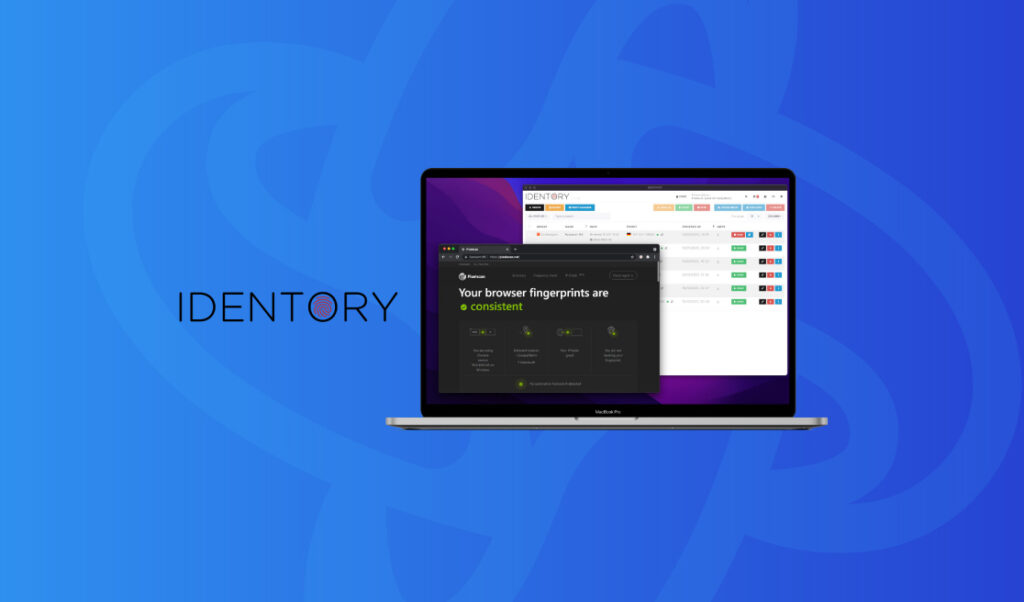
Setting up a Proxyma proxy in the IDENTORY anti-detection browser
Our Proxyma team has prepared a guide for users on setting up a Proxyma proxy server in the IDENTORY anti-detection browser. We won’t just explain the advantages and strengths of this combination, but also cover every detail: from registering and installing the browser to setting up proxy servers. This material will be useful not only for beginners but also for those who are considering changing their work tools.
What is IDENTORY?
A brief theoretical introduction to anti-detection browsers for beginners.
An anti-detect browser (also known as a multi-account browser) is an effective tool for working online.
These browsers are based on open-source browsers. They allow you to replace or mask a browser’s digital fingerprint by changing identifiers, IP addresses, and so on.
IDENTORY is a universal anti-detection browser designed to create unique web identities on the fly for any website. This browser provides a massive database of the most accurate hardware configurations with over 1,000,000 combinations, ensuring maximum protection and complete privacy.
What’s so good about IDENTORY?
An anti-detection browser is an important part of your work, but without reliable proxies, it’s useless. So why choose Proxyma’s proxy? Here are a few reasons:
- A wide selection of proxies for various tasks: from mobile to server.
- Flexible pricing policy: every user will find an option to suit their needs.
- Support system: users can get help and advice at any time.
- Automatically provides addresses to users.
- There is a refund option.
- There are unique tools for proxy integration.
Now let’s talk about IDENTORY’s strengths:
- The browser uses local data storage.
- It is possible to launch and authorize via TOR to achieve complete anonymity.
- The most simple and intuitive interface.
- Quick and easy creation of browser profiles with autofill capability.
- IDENTORY regularly updates its browser core and consistently releases updates, improving existing fingerprint substitutions and adding new ones.
- Advanced mobile device emulation (iPad, iPhone and Android) and support for software-based profiling and browser automation (Puppeteer / Playwright / CDP) are provided.
- High optimization rates allow you to work with 100 profiles at once without problems or freezes.
Installing IDENTORY
Before installing IDENTORY, don’t forget to register on the Proxima website and select a proxy server package.
There are several options:
- If you know what you need, simply register, review Proxima’s list of options and services, choose the right package, and pay.
- If you’re unsure what you need, contact support, read our blog, and choose the perfect proxy server option. There are many options, from “private proxies” to “business” options.
Once you have selected a proxy, proceed to installing the browser.
A step-by-step guide to setting up a proxy in IDENTORY
If you have completed all the previous steps, it is time to start setting up the servers.
Step 1: Open IDENTORY.
Step 2: Go to the “Proxy List” tab.
Step 3: A settings tab will open.
Step 4: Using the “Add Proxy” button, add a new proxy server.
Step 5: Fill in the fields, specifying the proxy protocol (it must match your package from Proxima).
Step 6: After filling in the data and clicking the “OK” button
Step 7: To check the server functionality, select a proxy and click “Check”.
Step 8: If the connection was successful, a green indicator will appear in the “Status” column.
And what do we get as a result?
The result is a functional combination: IDENTORY + fast, reliable proxy servers from Proxyma, which will positively impact work processes and the final result.
If you have any questions about proxies or how to connect, we’re always ready to help. Visit the Proxyma homepage and ask your questions directly in the chatbot. You can also email Proxyma at email.
Looking for a specific article?
Available categories